Automate form creation with inserting fields from Odoo in templates

Work with fillable templates in Odoo using ONLYOFFICE. Create templates based on the data and fields available in Odoo, fill them out and print with several clicks.

Edit the existing templates

Launch the ONLYOFFICE Templates app to open the page with the existing form templates. Each template has a tag indicating which Odoo module the template was created for.

When you click the Edit button in the file context menu, a form template will open in the ONLYOFFICE editor. The left panel dynamically displays the fields from Odoo that can be linked to the ONLYOFFICE form fields. The Odoo field ID is written in the Key field of the editor in the right panel.

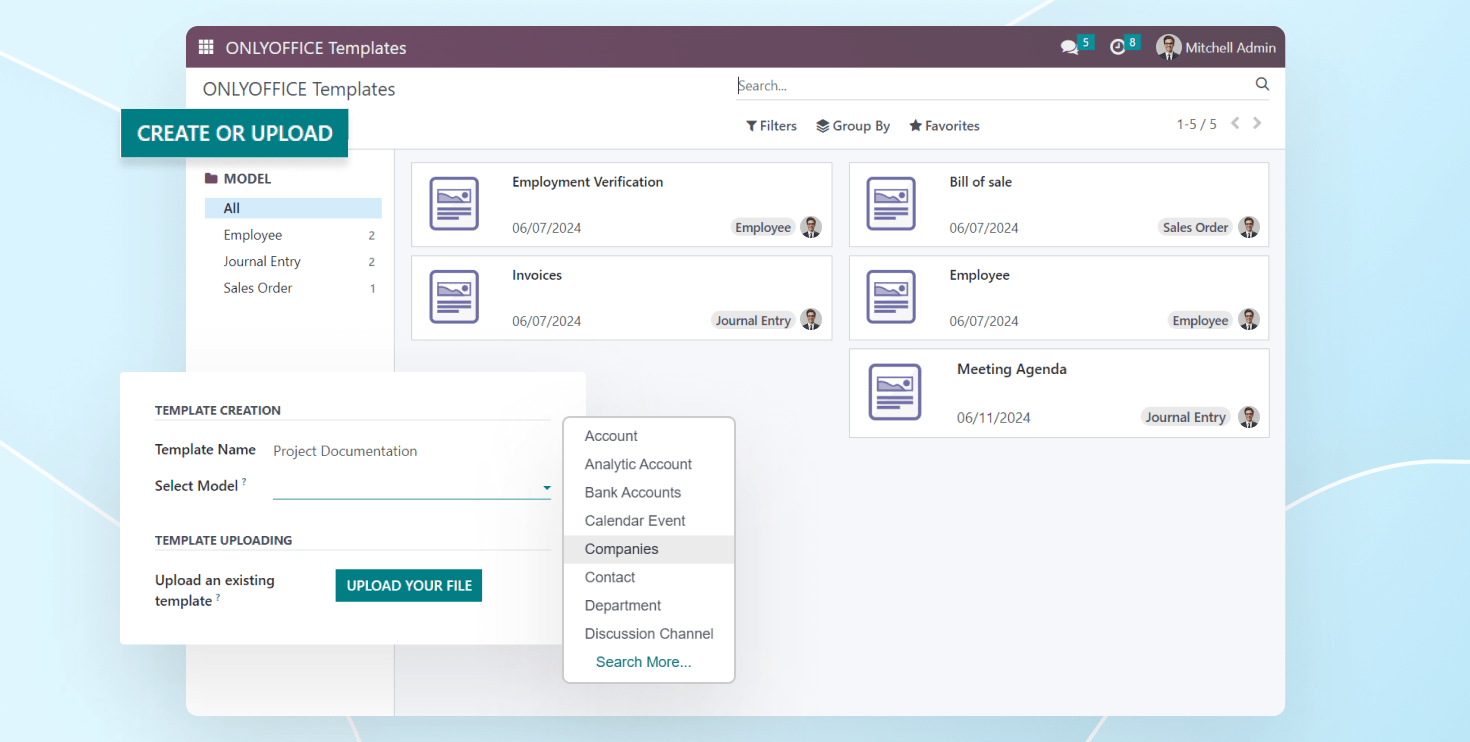
Create new templates

To create a new template, click the Create&Upload button. In the pop-up window, specify the template name and select the Odoo module to which the template belongs.

You can upload any existing form template from your local drive (using the Upload your file button), or save a new blank template (using the Create button in the upper right corner).

Work with ready templates

The ONLYOFFICE app is integrated into all sections/modules of Odoo. You can print the form by clicking the "Print with ONLYOFFICE" button in the Action menu.

Next, a window appears with a list of templates available for this section. Select the required template so that it is filled with the data taken from the linked Odoo page (deal, employee card, etc.).

Access rights

There are two types of roles for this app:

  • User: can print templates and open them for viewing. Users cannot create new templates and cannot edit the current ones.
  • Administrator: can open, create, edit and print templates.

The role type is specified in the user profile. By default, all users are assigned the User role.